3 min read
Published & Draft Views
The Stories tool uses a two-view system that separates live content from work-in-progress, ensuring you can perfect stories before they go live to your users.
The Two-View System
The Stories tool has two main views accessible from the left-hand navigation bar:
- Published View - Shows live stories currently in your app
- Current Draft View - Workspace for creating and editing stories
Published View
The Published view is your starting point and shows what users currently see in your app.
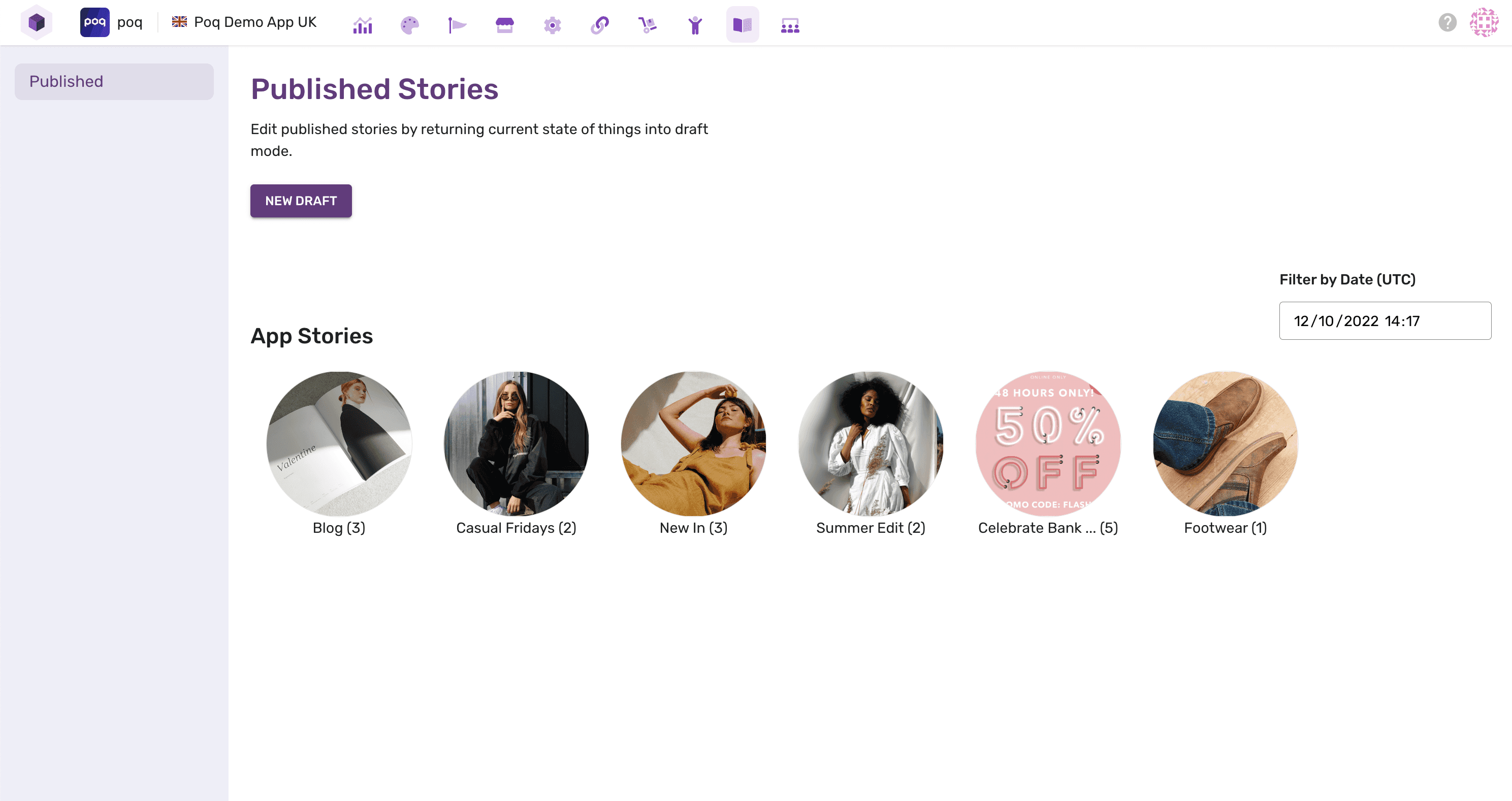
What You'll See
Story Carousel:
- Visual carousel of story cover images
- Click any story to view its story cards
- Numbers in brackets show story card count per story
Story Card Details:
- Click individual story cards to see configuration
- View Content Type, Action Type, and Duration
- Understand how each card is set up
Filter Controls:
- Date and time filters at the top of the screen
- Preview stories for specific future dates and times
- Validate that scheduling works correctly
Available Actions
Create New Content:
- "New draft" - Start fresh story creation
- "Resume editing" - Continue working on existing draft
Important: Only one draft can exist at a time to prevent conflicting changes between team members. Coordinate with colleagues who might also be editing stories.
Preview and Validation
Scheduling Preview: Use the filter fields to:
- Test future story activation
- Verify scheduled content appears correctly
- Check story timing and duration settings
- Ensure stories activate at the right moments
Story Structure Review:
- See exactly what users will experience
- Verify story order and appearance
- Check story card counts and content types
- Validate all stories are properly configured
Current Draft View
The Draft view is your creative workspace where you build and refine stories before publishing.
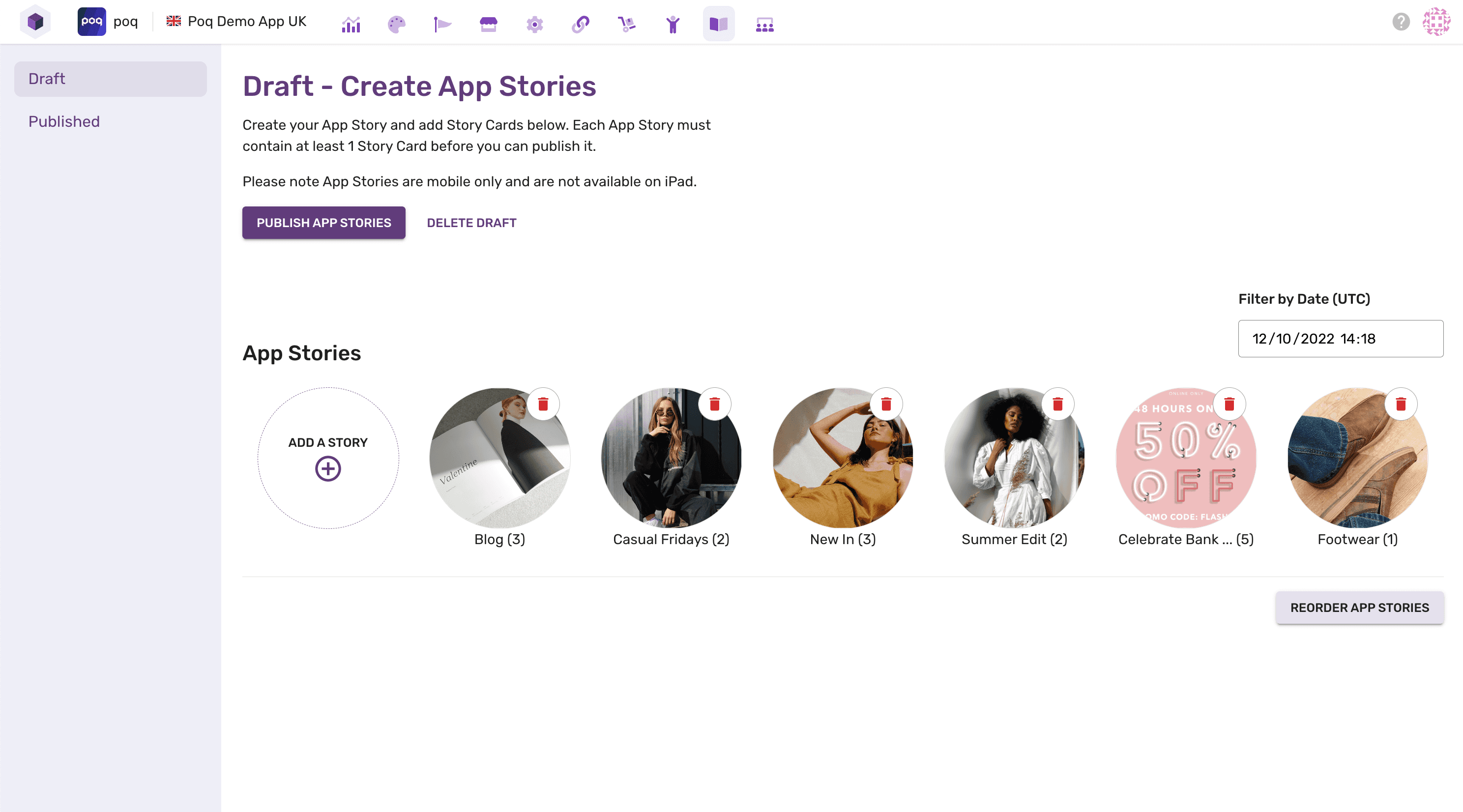
Draft Capabilities
The draft view provides the same visual carousel as published view, plus additional editing capabilities:
Story Management:
- ✅ Reorder stories - Click "Reorder App Stories" then drag and drop
- ✅ Delete stories - Remove stories using the bin icon
- ✅ Add new stories - Create fresh story content
- ✅ Publish changes - Push draft live to the app
- ✅ Delete draft - Discard changes and return to published state
Content Creation:
- Add new stories to your collection
- Edit existing story content and cards
- Configure story settings and scheduling
- Preview changes before publishing
Draft Workflow Best Practices
1. Plan Your Changes
- Know what stories you want to create or modify
- Consider the overall story experience and flow
- Plan story scheduling around marketing campaigns
2. Work Systematically
- Create all stories for a campaign together
- Test story order and timing
- Review story cards for consistency
3. Preview Thoroughly
- Use filters to test different time scenarios
- Check story progression and flow
- Verify all links and actions work correctly
4. Publish Deliberately
- Stories go live immediately when published
- Ensure all content is final and approved
- Consider timing of publication for maximum impact
Workflow Management
Single Draft System
Why only one draft:
- Prevents conflicting edits between team members
- Ensures content integrity and consistency
- Simplifies the review and approval process
Team Coordination:
- Communicate with colleagues before starting edits
- Complete and publish drafts promptly
- Use external tools for collaboration and planning
State Transitions
Published → Draft:
- Click "New draft" to start fresh
- Or "Resume editing" to continue existing draft
- Draft inherits current published state
- Make changes in draft environment
Draft → Published:
- Review all changes thoroughly
- Test with filters and preview
- Click publish when ready
- Changes go live immediately
Draft → Discard:
- Click "Delete draft" to abandon changes
- Returns to published state
- All draft changes are lost
- Start fresh with "New draft"
Story Management Features
Story Organization
Visual Carousel:
- Stories appear as cover images
- Drag and drop reordering available
- Clear visual hierarchy and flow
Story Information:
- Story card counts in brackets
- Content type indicators
- Action and duration details
Content Validation
Before Publishing:
- ✅ Review all story cards and content
- ✅ Test scheduling with date/time filters
- ✅ Verify story order and progression
- ✅ Check all links and actions work
- ✅ Ensure content aligns with brand guidelines
Integration with Publishing
Real-time Updates:
- Published changes go live immediately
- No delay between publish and user visibility
- Stories activate based on their scheduling
Scheduling Integration:
- Stories respect their configured schedules
- Filter preview shows future story states
- Coordinate with marketing campaign timing
What's Next?
- Story Creation Workflow - Learn how to build engaging stories
- Story Configuration - Master scheduling and display options
- Content Types - Explore different story card formats