2 min read
Published, Draft & History
The Banners tool has three main views in the left-hand navigation that control your banner management workflow. Understanding these views is essential for effective banner management.
Published View
The Published view is your starting point when you load the Banners tool. This shows the banners currently live in your app.
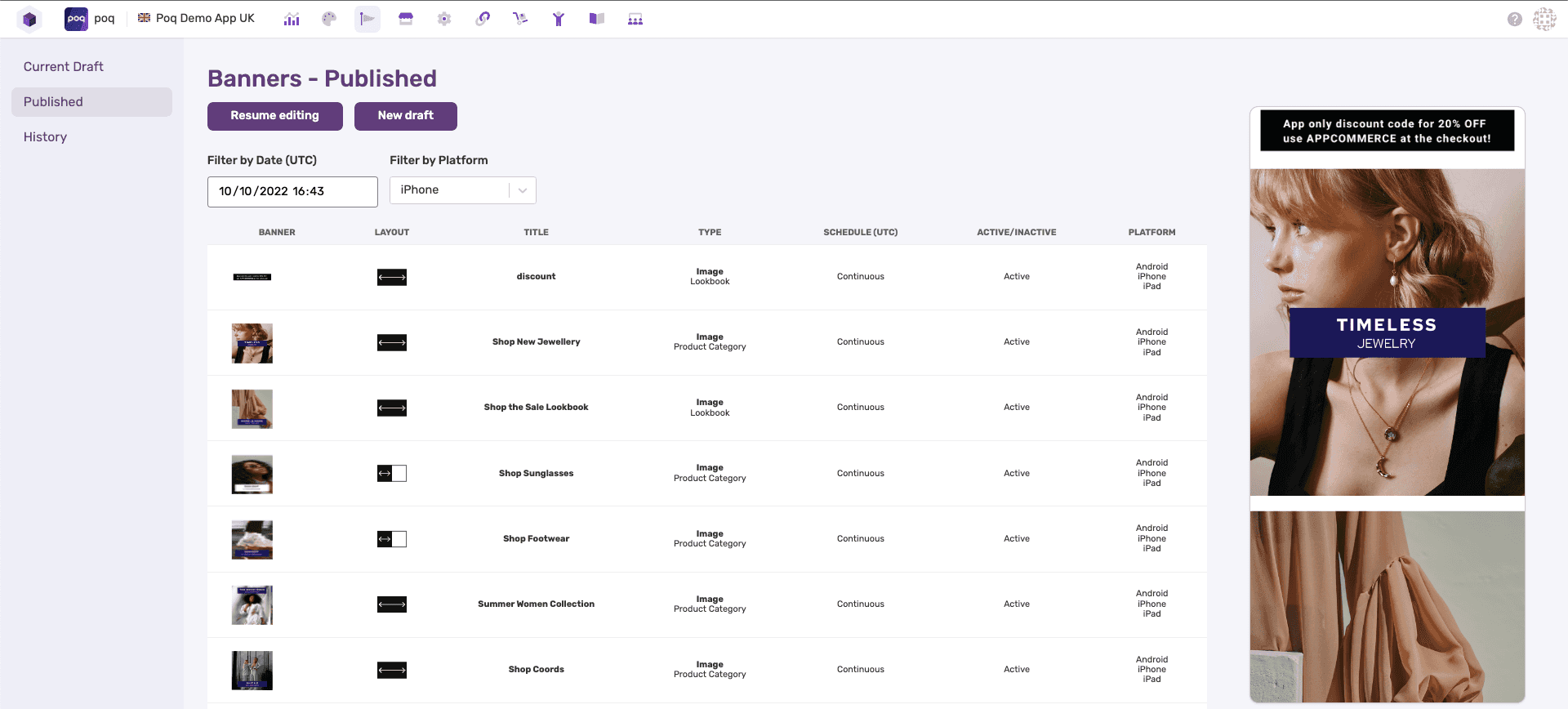
What you'll see:
- Banner list - All currently published banners with their settings
- Visual preview - Scrollable preview of how banners appear in the app
- Filter controls - Date, time, and platform filters at the top
Available actions:
- New draft - Create a new set of changes
- Resume editing - Continue working on an existing draft
Note: Only one draft can exist at a time to prevent conflicting changes. Coordinate with colleagues who might also be making changes.
Preview Controls
Use the filter fields to preview banners for specific scenarios:
- Date & time filters - See future scheduled content
- Platform filters - Preview iPhone, Android, or iPad versions
- Visual preview updates - Changes automatically as you adjust filters
This gives you confidence that scheduling and platform targeting work correctly.
Current Draft
The Draft view is where you make changes to banners before publishing them live.
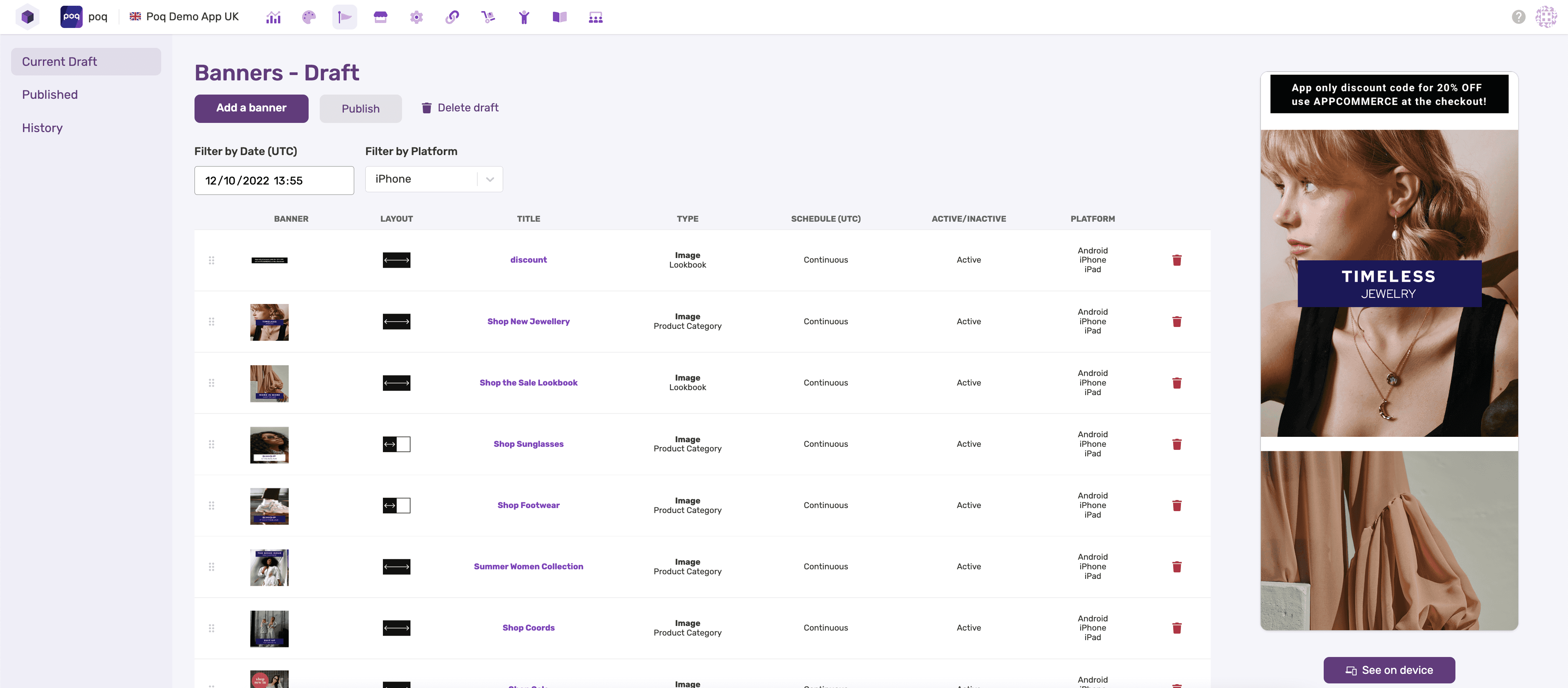
Additional capabilities in Draft view:
- ✅ Drag & drop reordering - Change banner sequence
- ✅ Delete banners - Remove banners using the bin icon
- ✅ Create new banners - Add more content
- ✅ Publish changes - Push draft live to the app
- ✅ Delete draft - Discard changes and return to published state
- ✅ Import/Export - Move banners between environments
Device Preview Feature
The "See on device" button underneath the visual preview generates a QR code for real device testing.
How it works:
- Set your desired date, time, and platform filters
- Click "See on device"
- Scan the QR code with your smartphone camera
- Your app opens with the draft banners loaded
Requirements:
- App must already be installed on your device
- QR code respects current filter settings
Troubleshooting: If you see "App bundles are not set up", contact support.
History View
The History view shows a timeline of all published banner changes, helping you track what changed and when.
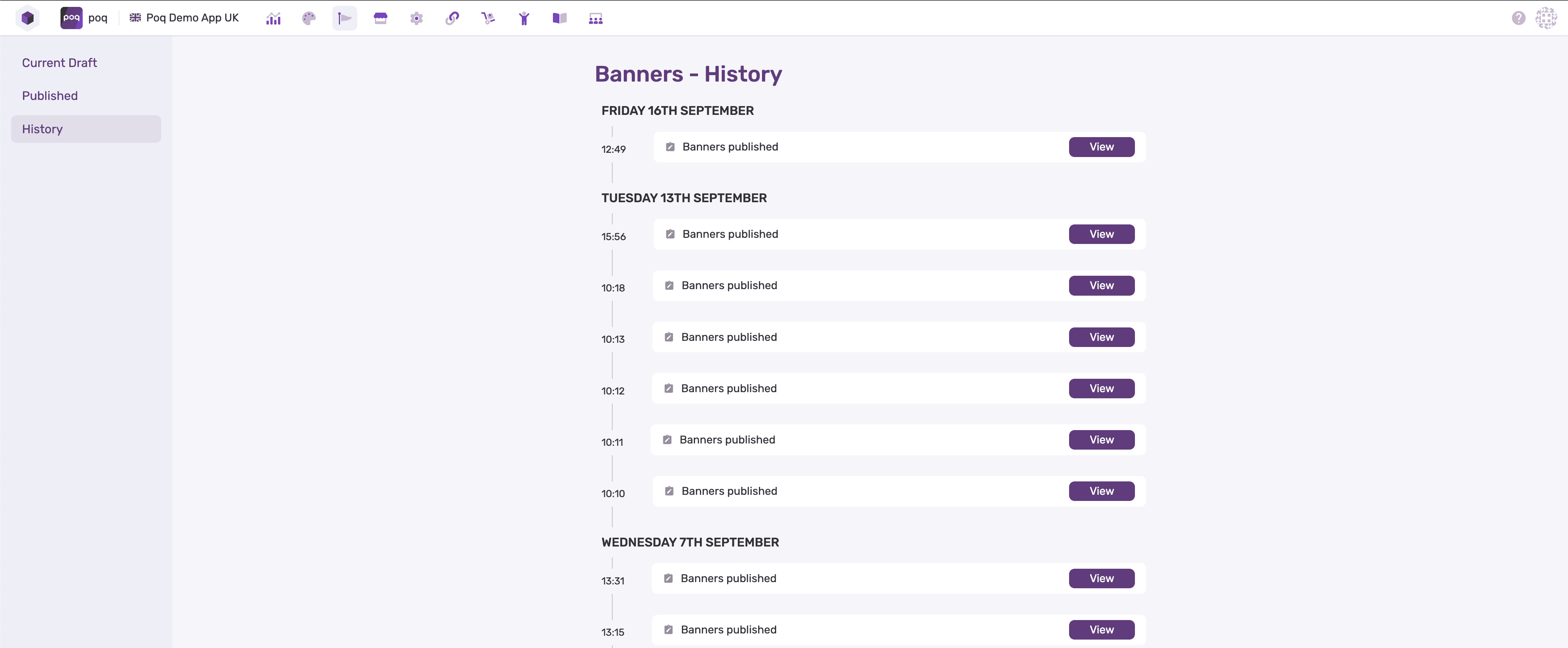
Use cases:
- Track changes - See what was published and when
- Revert changes - Create a new draft from a previous version
- Audit trail - Understand the evolution of your banner strategy
How to revert:
- Find the historical version you want to restore
- Create a new draft from that version
- Publish the restored draft
Workflow Best Practices
- Start in Published - Always check what's currently live
- Create focused drafts - Make related changes together
- Preview thoroughly - Use filters to test different scenarios
- Test on device - Verify the mobile experience
- Publish deliberately - Changes go live immediately
- Use history - Track your changes over time
What's Next?
- Learn about previewing and filtering - Master the preview controls
- Create your first banner - Start with image banners