3 min read
In-Store Banners
Available from v25 for customers who have enabled In-Store Mode
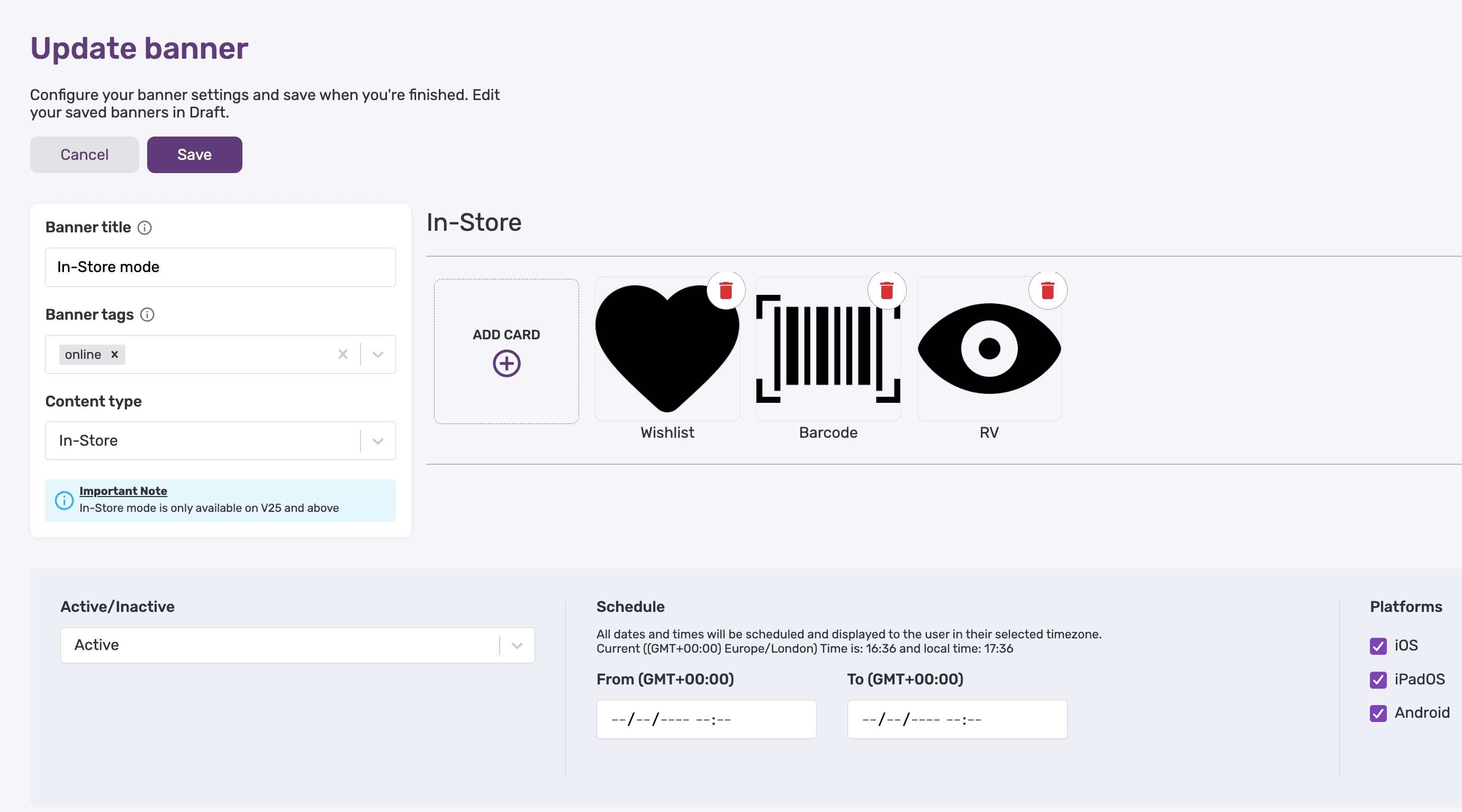
In-Store banners provide special functionality for customers using your app within physical store locations. These banners can display in-store specific content and link to location-aware features.
What Are In-Store Banners?
In-Store banners activate when customers are detected within your physical store locations, providing contextually relevant content and functionality that enhances the in-store shopping experience.
Key features:
- Location-aware - Only appear when users are in-store
- Carousel format - Multiple items with icons and links
- Custom deep linking - Advanced navigation options
- In-app feature integration - Direct links to store-specific functionality
Prerequisites
Before creating in-store banners, ensure:
- ✅ In-Store Mode is enabled for your app
- ✅ Location permissions are configured
- ✅ Store locations are set up in your system
- ✅ Geofencing is properly configured
Note: Contact your support team if you need help enabling In-Store Mode.
Step-by-Step Setup
1. Banner Title
Provide a descriptive title for accessibility and management:
Recommended titles:
- "In Store Features"
- "Store Services"
- "Location Services"
- "Store Directory"
Title purposes:
- Accessibility support - Screen readers and voice assistance
- Analytics identification - Track in-store banner performance
- Admin organization - Easily identify banners in the interface
2. Content Type
Select In Store Mode from the content type dropdown to access carousel configuration options.
3. Add Carousel Items
Build your in-store experience by adding multiple carousel items:
For Each Carousel Item:
Select an Icon:
- Choose from available icon library
- Icons should be intuitive and recognizable
- Consider consistency across all carousel items
Choose In-App Feature Link: Select from available in-store features:
- Store map/directory - Help customers navigate
- Product finder - Locate items in store
- Staff assistance - Call or chat with associates
- Queue management - Join waiting lists
- Store-specific offers - Location-based promotions
- Fitting room booking - Reserve fitting rooms
- Personal shopping - Connect with stylists
4. Custom Deep Link (Optional)
For advanced functionality, you can set up custom deep links:
Use cases:
- Navigate to specific app screens
- Launch external store systems
- Trigger custom store functionality
- Integrate with third-party services
Important: Custom deep links require additional configuration. Contact your support team for setup assistance.
5. Platform Selection
Choose which devices display in-store banners:
- ✅ iPhone - iOS in-store experience
- ✅ iPad - Tablet-friendly store interface
- ✅ Android - Android in-store functionality
In-Store Banner Strategies
Store Navigation
Help customers find their way:
Banner Title: "Store Navigation"Items:- Store Map (map icon)- Product Finder (search icon) - Department Directory (list icon)- Restroom Locator (facilities icon)Customer Service
Connect customers with assistance:
Banner Title: "Need Help?"Items:- Call Associate (phone icon)- Chat with Staff (message icon)- Request Assistance (help icon)- Store Information (info icon)Enhanced Shopping
Add value to the in-store experience:
Banner Title: "Store Services"Items:- Fitting Room Booking (calendar icon)- Personal Stylist (person icon)- Store Exclusive Offers (tag icon)- Queue Status (clock icon)Geofencing and Location Detection
How Location Detection Works
- App detects location - When users enter store geofence
- In-store mode activates - Special content becomes available
- Banners appear - In-store specific banners display
- Features unlock - Store-specific functionality enabled
Geofence Configuration
Work with your team to ensure:
- Accurate boundaries - Geofences cover store areas appropriately
- Entry/exit detection - Smooth transitions in and out of store mode
- Multiple locations - Each store location properly configured
- Permission handling - Users understand why location access is needed
Best Practices
Content Strategy
Clear value proposition:
- Explain benefits of in-store features
- Use familiar, intuitive icons
- Keep carousel items focused and relevant
Store-specific customization:
- Different carousels for different store types
- Location-specific services and features
- Local language/cultural considerations
Icon Selection
Choose recognizable icons:
- Use standard symbols when possible
- Maintain consistency across items
- Test icon recognition with users
- Consider accessibility requirements
Feature Prioritization
Most valuable first:
- Lead with highest-value services
- Consider customer pain points
- Match your store's unique strengths
- Update based on usage analytics
Technical Considerations
Performance
- Location accuracy - Ensure reliable geofence detection
- Battery impact - Optimize location services usage
- Network connectivity - Handle poor in-store connectivity
- Loading speed - Fast access to store features
Privacy and Permissions
- Clear communication - Explain why location access is needed
- Opt-in approach - Make location sharing voluntary
- Data handling - Follow privacy regulations
- User control - Allow users to disable in-store features
Analytics and Optimization
Track key metrics:
- In-store banner impressions - How often banners appear
- Feature usage - Which carousel items are most popular
- Location accuracy - Proper geofence triggering
- User engagement - Time spent using in-store features
Optimization opportunities:
- A/B test different carousel configurations
- Monitor which features drive most engagement
- Analyze peak usage times and locations
- Update content based on seasonal needs
Troubleshooting
Banner not appearing:
- Verify In-Store Mode is enabled
- Check geofence configuration
- Confirm location permissions granted
- Test with different devices/locations
Features not working:
- Validate deep link configurations
- Check custom URL setups with development team
- Verify in-app feature availability
- Test across different platforms
What's Next?
- Learn about import/export - Manage configurations across store locations
- Master previewing - Test in-store banners before deployment
- Return to banner overview - Explore other banner types and features