3 min read
Import & Export
The App Manager provides import and export functionality for banners, making it easy to migrate content between different environments, backup configurations, and share banner setups across teams.

Overview
Export functionality:
- Backup current banner configurations
- Share setups between environments
- Create templates for future use
- Migrate from staging to production
Import functionality:
- Restore previous configurations
- Deploy banners from other environments
- Apply template configurations
- Bulk setup for new environments
Exporting Banner Content
Step-by-Step Export Process
- Access Banners tool - From the App Manager landing screen, select 'Banners' from the top navigation
- Enter Draft mode - Select 'New Draft' or edit an existing banner draft
- Start export - Click 'Export' from the available actions
- Select banners - Choose which banners to include in the export file
- Configure linked data - Decide whether to reset product IDs/categories (see below)
- Execute export - Click 'Export' to generate the file
- Download file - JSON file automatically downloads to your device
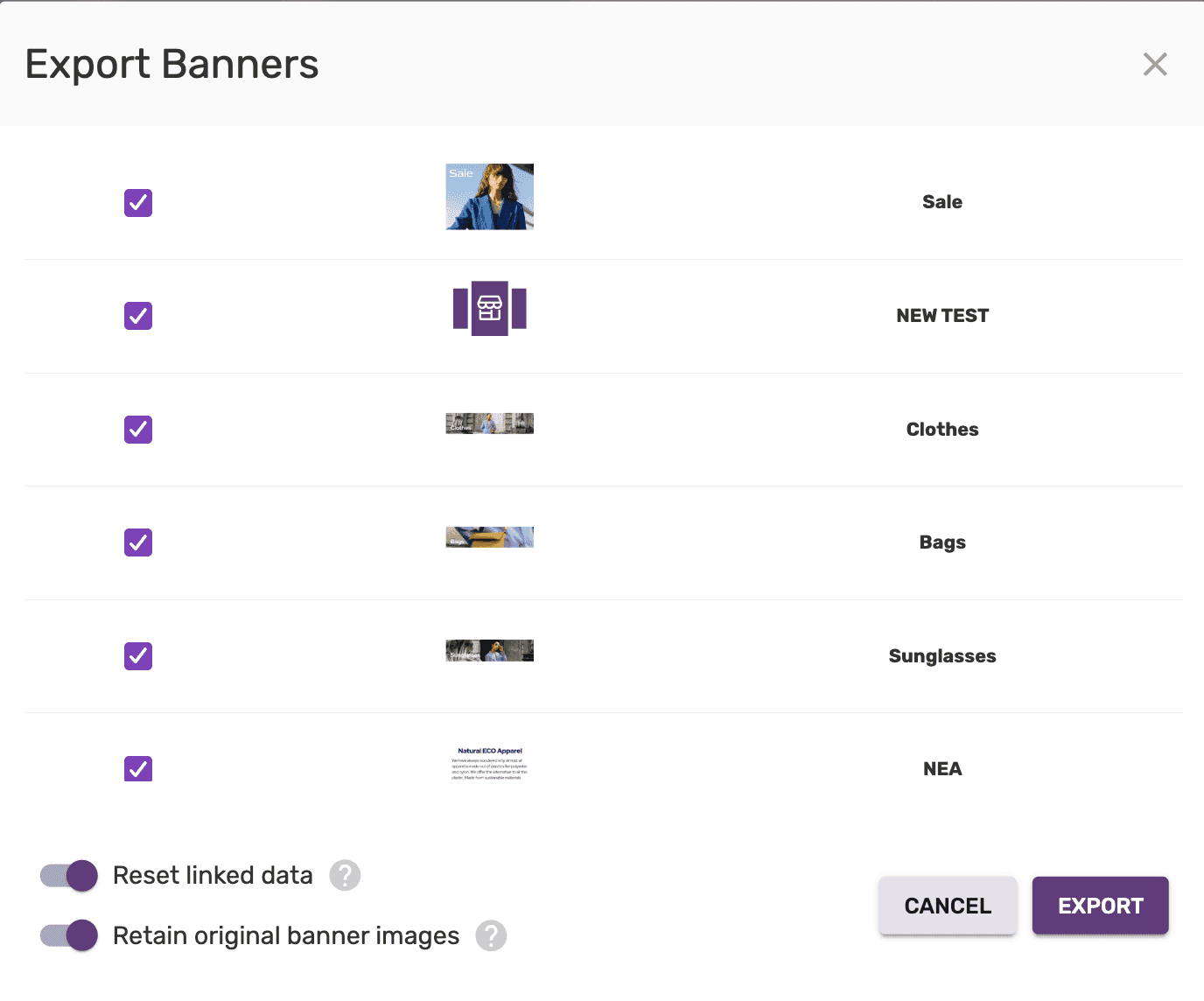
Linked Data Configuration
The "Reset linked data" toggle is crucial for cross-environment exports:
Keep linked data (toggle OFF):
- Use when product IDs and categories are the same across environments
- Maintains all product category links and references
- Best for staging → production deployments with identical catalogs
Reset linked data (toggle ON):
- Use when product IDs/categories differ between environments
- Removes specific product and category references
- Requires manual remapping after import
- Best for template creation or different catalog environments
Export Best Practices
Before exporting:
- ✅ Review which banners need to be included
- ✅ Consider the target environment's product catalog
- ✅ Document any custom configurations
- ✅ Test banner functionality before export
File management:
- 📁 Use descriptive filenames (e.g., "holiday-banners-2024.json")
- 📁 Store exports in version-controlled locations
- 📁 Include documentation about export purpose
- 📁 Regular backup schedule for important configurations
Importing Banner Content
Step-by-Step Import Process
- Access Banners tool - Navigate to 'Banners' from App Manager
- Enter Draft mode - Select 'New Draft' or edit existing banner draft
- Start import - Click 'Import' from available actions
- Select file - Choose your banner JSON file from local device
- Execute import - Click 'Import' to process the file
- Review results - Each banner is imported into App Manager
- Verify configuration - Check that all banners imported correctly
- Save and publish - Save draft and publish when ready

Important Import Considerations
Category and Product ID Mapping:
Critical: Unmapped category/Product IDs will not be migrated and require manual mapping after import.
What gets imported:
- ✅ Banner titles and descriptions
- ✅ Content types and layouts
- ✅ Scheduling information
- ✅ Platform targeting
- ✅ Active/inactive states
What may need remapping:
- ⚠️ Product category references
- ⚠️ Product-specific links
- ⚠️ Custom URLs (if environment-specific)
- ⚠️ Lookbook references
Post-Import Verification
After importing, verify these elements:
Banner functionality:
- All banners appear in the draft list
- Titles and descriptions are correct
- Content types match expectations
- Layouts display properly
Link validation:
- Product category links work correctly
- Custom URLs resolve properly
- Lookbook references are valid
- External links function as expected
Configuration accuracy:
- Scheduling settings are appropriate
- Platform targeting is correct
- Active/inactive states match intentions
Common Use Cases
Environment Migration
Staging to Production:
1. Export from staging (keep linked data OFF if catalogs differ)2. Import to production environment3. Remap any product categories that changed4. Test all banner functionality5. Publish when verifiedTemplate Creation
Reusable Banner Sets:
1. Create template banners with generic content2. Export with linked data reset (ON)3. Import to new environments4. Customize content for specific use cases5. Map to appropriate product categoriesBackup and Recovery
Regular Backup Process:
1. Schedule regular exports (weekly/monthly)2. Store with descriptive naming (date-based)3. Document any special configurations4. Test import process periodically5. Maintain backup retention policyCross-Team Sharing
Banner Configuration Sharing:
1. Export successful banner configurations2. Share JSON files with other teams3. Include documentation about setup4. Provide guidance on customization5. Support implementation across teamsFile Format and Structure
Export format: JSON (JavaScript Object Notation)
File extension: .json
Structure: Contains all banner configuration data
Typical file contents:
- Banner metadata (titles, descriptions)
- Content configuration (types, sources)
- Scheduling information
- Platform targeting settings
- Asset references and links
Troubleshooting
Export Issues
Export fails to start:
- Ensure you're in Draft mode
- Check that banners exist to export
- Verify browser permissions for downloads
Missing banners in export:
- Check banner selection during export
- Verify banners are properly saved
- Ensure banner status allows export
Import Issues
Import file rejected:
- Verify JSON file format is valid
- Check file wasn't corrupted during transfer
- Ensure file was exported from compatible version
Banners import but don't work:
- Check product category mappings
- Verify all referenced assets exist
- Test links and navigation functionality
- Review platform-specific settings
Mapping Problems
Product categories not working:
- Manually remap categories after import
- Check that target categories exist
- Verify category IDs match between environments
Custom URLs broken:
- Update URLs for target environment
- Check that custom endpoints exist
- Test URL accessibility
Best Practices Summary
For Exports
- 📋 Plan ahead - Know your target environment
- 🔍 Review content - Check all banners before export
- 📝 Document setup - Note any special configurations
- 🔄 Regular backups - Maintain export schedule
For Imports
- ✅ Verify prerequisites - Ensure target environment is ready
- 🔍 Check mappings - Validate product categories exist
- 🧪 Test thoroughly - Verify all functionality works
- 📋 Document changes - Note any customizations made
What's Next?
- Return to banners overview - Explore other banner features
- Learn about banner analytics - Track and optimize performance
- Explore other content types - Manage stories, lookbooks, and more